Key Takeaways: Dr.Fone can transfer supported data between phones. iCloud and your computer backup can restore an iPhone, while Samsung Smart Switch and other phone-maker tools help with Android moves. mSpy and uMobix are monitoring services, not full phone-copy tools. Use only your own devices or devices you have permission to manage. Moving files does not duplicate a mobile number or SIM.
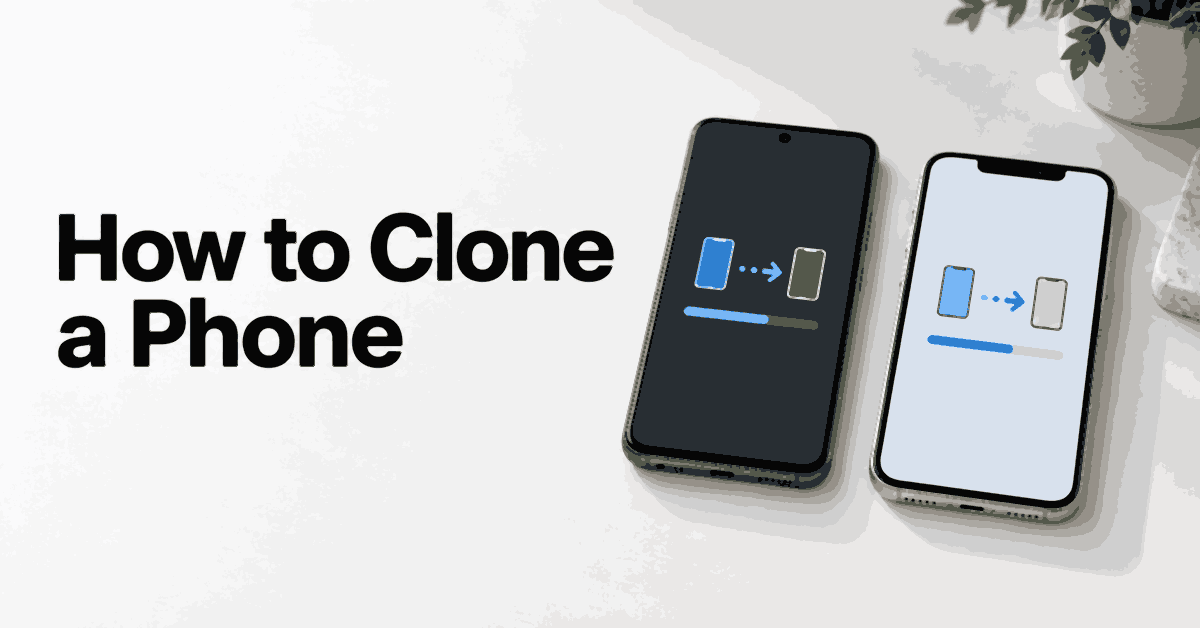
Buying a new phone should not mean losing your photos, contacts, and messages. People often call the move “phone cloning,” but the result depends on the method. A backup can restore supported settings and app data. A file transfer might move only the photos you select. A monitoring dashboard collects certain records rather than making a second working copy of a phone.
Start by deciding what you need to move. If the old phone still works, a direct transfer is usually the easiest route. If it is broken or missing, you need an existing backup or files that already sync to your account. No transfer app can promise to recover everything from an inaccessible device.
Before you clone or transfer a phone
Check these points before connecting either device:
- Confirm that you own both phones or have the owner’s informed permission to copy the selected data.
- Back up the old phone and any files already on the new one. Some restore operations replace existing content.
- Charge both phones and check the free storage on the receiving device.
- Keep the account recovery details you need within reach. The owner should enter their own passwords and verification codes.
- Update the transfer app and check that it supports both phone models and operating systems.
- Set aside time to inspect the result before resetting or trading in the old phone.
An app icon on the new phone does not prove that its private data transferred. Banking apps, authenticators, work profiles, and some messaging apps may require their own setup. Keep your old device available until those services work on the replacement.
Method 1: Understand what mSpy can copy
mSpy provides monitoring reports for supported devices. Depending on the platform and setup, these can include location information, calls, messages, and other activity. It does not create a bootable duplicate of Android or iOS, and it does not move a cellular subscription to another handset.
This distinction matters if your aim is a normal upgrade. Paying for a monitoring subscription will not make the new phone look and behave like the old one. Use a transfer or backup tool for that job. Consider parental monitoring only for a defined, lawful supervision need, with age-appropriate notice and limits on the information collected.
Check suitability before choosing monitoring
- Write down the information you need and why you need it. For a school pickup, location sharing may be enough.
- Check the exact Android or iPhone setup requirements. The same product name does not mean identical features on both platforms.
- Discuss the arrangement with the device user. Do not use another adult’s account or install software without their knowledge.
- Review the demo, support information, and refund conditions before payment.
- If the need is simply to move photos or contacts, use one of the transfer methods below instead.
Free Trial/ Refund: 14-day money-back guarantee. Refund eligibility has conditions; a refund window is not a free monitoring trial.
Bottom Line: mSpy belongs in a discussion of authorized monitoring. It should not be described as a full-device cloning or SIM-copy service.
14-day money-back guarantee.
Method 2: Transfer supported data with Dr.Fone
Dr.Fone has a Phone Transfer module for moving supported content between devices. It can be useful when the old and new phones use different operating systems, but the available data categories depend on the transfer direction. Check those categories before buying a license.
Use the Phone Transfer module for migration. Other Dr.Fone features, such as recovery or messaging backups, can have different requirements and licenses. A product bundle should not be treated as a promise that every app’s private database will transfer.
Steps for a computer-assisted transfer
- Install the official Dr.Fone software on your own PC or Mac and open Phone Transfer.
- Connect the old phone and the new phone using suitable data cables. Unlock your devices and review the connection prompts.
- Confirm that the old phone is the Source and the new phone is the Destination. Use Flip if they are reversed.
- Select only the categories you want to copy. Read any warning about clearing data from the destination before continuing.
- Start the transfer and leave both phones connected until the software reports completion.
- Open the receiving phone and check several files in each selected category. Confirm that contacts and messages are readable, not just counted in a completion screen.
Wondershare’s Phone Transfer instructions show the source-and-destination workflow. If the program cannot detect a phone, check the cable, USB connection, and supported device list before trying again. Do not respond to a failed transfer by downloading an unknown “unlock” utility.
Bottom Line: Dr.Fone can help move supported data. Keep a separate backup and check the destination before removing anything from the old phone.
Method 3: Send selected files over Bluetooth
Bluetooth can move selected files between compatible devices. Pairing alone does not copy a phone, expose its messages, or duplicate its number. Both devices must support the type of transfer you want, and the receiving person must approve the connection or incoming files.
For two compatible Android phones, try a small file before sending a large folder. Large video collections are better handled by a cable, a phone-maker transfer app, or another supported nearby-sharing feature. An iPhone does not accept ordinary Android Bluetooth file transfers in the same way.
Steps for compatible Android devices
- Turn on Bluetooth on both phones and open the pairing settings.
- Select the other device and compare the pairing code shown on the two screens.
- Confirm the pairing on both phones. Reject the request if the name or code does not match.
- On the sending phone, open a photo or file, choose Share, and select Bluetooth if available.
- Choose the paired receiving phone and accept the incoming transfer there.
- Open the received file to check it. Disconnect or remove the pairing afterward if it is no longer needed.
Some phones use Quick Share rather than Bluetooth as the main file-sharing option. Follow the feature actually shown on your device. Do not install a “cloning” app that claims pairing gives it unrestricted access to another phone.
Method 4: Move your number through your mobile carrier
SIM cloning and phone-data transfer are different processes. A SIM or eSIM connects your mobile service to a device. Photos, apps, and most messages are stored elsewhere. Copying those files does not activate your number on a new SIM.
To keep your number, use your carrier’s approved SIM replacement, eSIM transfer, or number-porting process. Avoid SIM-copy utilities and instructions for extracting cellular authentication details. Those are not needed for an ordinary phone upgrade and can put calls, texts, and account security at risk.
- Check whether the new phone is compatible with your carrier and whether it uses a physical SIM, eSIM, or both.
- Follow the carrier’s official activation or transfer instructions. The account holder may need to confirm their identity.
- Complete any verification on your own devices. Never send an activation QR code or one-time code to an unsolicited caller.
- Test an incoming call, an outgoing call, a text message, and mobile data on the new phone.
- Confirm with the carrier whether the old SIM has been deactivated.
A dual-SIM phone can use two separate subscriptions. That does not mean one subscription has been cloned. Ask the carrier about supported companion-device plans if you need service on another eligible device.
Method 5: Copy an iPhone using a backup
Option A: Restore from iCloud
An iCloud backup is useful when you want to restore your own apps and supported data during setup. Separately synced content, such as iCloud Photos, may continue downloading after the initial restore. Allow time for that before deciding that files are missing.
- On the old iPhone, open Settings > your name > iCloud > iCloud Backup.
- Choose Back Up Now and wait for a completed backup. Check its date.
- Start setting up the new iPhone. At Transfer Your Apps & Data, choose From iCloud Backup.
- Sign in to your own Apple Account and choose the appropriate backup by device name, date, and size.
- Keep the new phone on power and connected to Wi-Fi while the restore and downloads finish.
If the receiving iPhone is already set up, a full setup restore may require erasing it first. Back up its existing content before considering that step. Apple’s restore guide explains the difference between restoring an iCloud backup and restoring a computer backup.
Option B: Restore a computer backup
Use Finder on a supported Mac, Apple Devices on Windows, or iTunes where that is the supported option. The backup application runs on the computer, not inside the new iPhone.
- Connect your old iPhone to your computer and select it in the backup application.
- Create a backup. If you choose an encrypted local backup, save its password securely because you will need it to restore.
- Wait for the backup to finish and confirm its date.
- Connect the new iPhone and choose Restore Backup.
- Select the correct backup, enter its encryption password if required, and wait for the restore to complete.
- Check the new device before disconnecting and retiring the old one.
Option C: Quick Start or an iPhone monitoring app
For a normal iPhone upgrade, Quick Start offers a direct setup route. Keep the phones near each other with Wi-Fi and Bluetooth enabled, follow the setup prompt on the old device, and choose the transfer option offered. Keep both phones powered until the migration finishes.
Monitoring apps are a separate category. mSpy may display supported iPhone records through a compatible, authorized setup, but that does not make it an iPhone backup replacement. Do not expect it to copy every app, recover all deleted messages, or give secret access to another person’s account.
Method 6: Move data between Android phones
Option A: Bluetooth or nearby file sharing
Use the Bluetooth steps above for a small set of supported files. This approach is selective, so you decide what leaves the old device. It does not move the full operating system, app sign-ins, or cellular identity.
Option B: Phone-maker transfer software
Samsung Smart Switch, OPPO Clone Phone, and OnePlus transfer tools are intended for supported phone migrations. The receiving phone and transfer direction matter. For example, Samsung Smart Switch moves data to Galaxy devices from supported Android or iOS devices; it is not limited to Samsung-to-Samsung transfers.
- Open the transfer feature recommended by the new phone’s manufacturer.
- Choose the receiving role on the new phone and the sending role on the old one.
- Connect by the supported cable or wireless method and approve the connection on both devices.
- Review the data categories and select what you want to move.
- Start the transfer, keep the devices connected, and check the completion summary.
- Open your main apps and confirm any account sign-ins or separate restores they require.
Option C: Other apps, including uMobix
uMobix and mSpy are associated with remote monitoring rather than ordinary Android migration. A dashboard may show supported activity collected from an enrolled phone, but it will not turn another handset into a complete copy of that device. For replacing a phone, use a manufacturer tool or a backup first.
Spokeo also appears in phone-search discussions. It searches records associated with people and numbers. It cannot copy a phone, obtain its private files, or activate a duplicate SIM.
Check the result before using the new phone
Open several older photos as well as recent ones. Check a contact with multiple numbers, a message conversation, downloaded documents, and your calendar. Cloud placeholders can look like transferred files even while the originals are still downloading.
Test account recovery before wiping the old phone. Move authenticator access using the provider’s own process and keep recovery codes private. Confirm that your main email, banking, messaging, and work apps function on the new device. A successful file copy and a working login are separate checks.
Protect your phone from unwanted copying
Use a strong screen lock and keep your phone updated. Review unfamiliar paired devices, installed apps, account sessions, and management profiles. Do not approve a computer trust prompt or file-transfer request you did not start.
Unexpected loss of cellular service deserves a carrier check, especially if it appears with account-reset messages. It can have an ordinary network cause, but the carrier can confirm whether a SIM change occurred. Suspicion alone does not establish cloning. Protect the mobile account with the security options your carrier offers.
Verdict
For moving to a new phone, start with the manufacturer’s transfer feature, iCloud, or a computer backup. Dr.Fone is an option for supported transfers that need a separate tool. Bluetooth suits selected files. Move a mobile number through your carrier, and keep monitoring services separate from the job of migrating your own data.