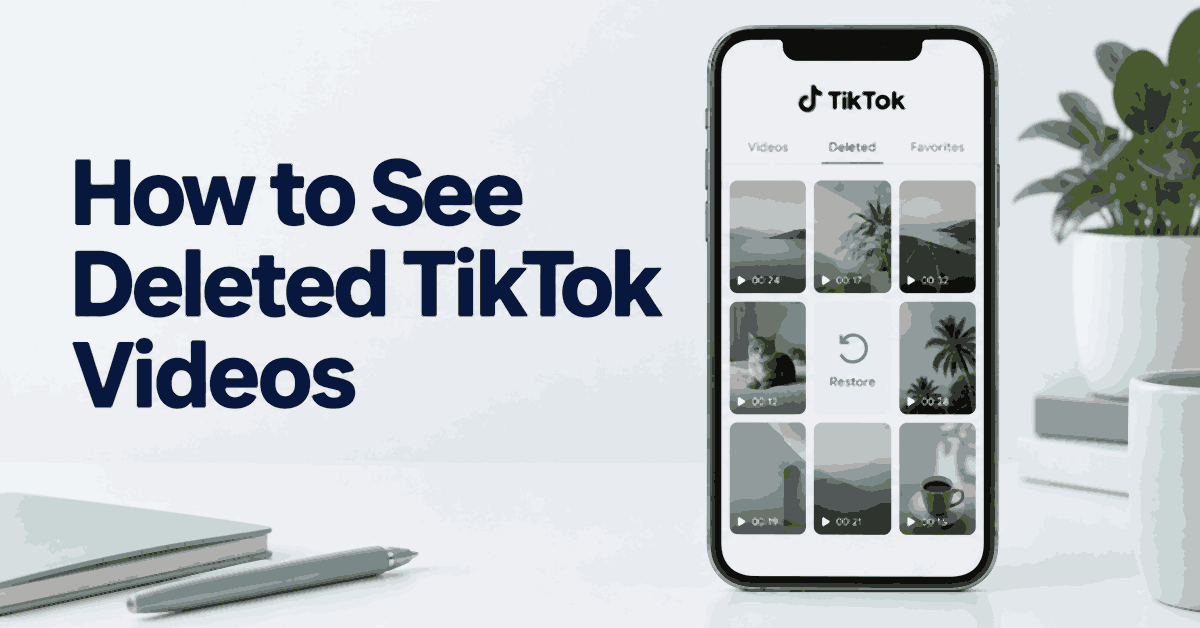
If you deleted one of your TikTok videos, check Recently deleted first. TikTok keeps eligible deleted posts there for up to 30 days. If that window has passed, your next options are copies saved on your phone, in cloud storage, on a computer, or in the editing app you used.
Recovering a post and finding another copy are different outcomes. Restoring an eligible post through TikTok can bring it back to your profile. Finding an exported video in your gallery gives you a file, but it does not automatically restore the original post, comments, or engagement.
This guide covers 11 methods. Start with the free places where a copy is likely to exist. Do not reset your phone, clear app storage, or install a monitoring app in the hope that it can recreate a video it never captured.
Key Takeaways: Try TikTok’s Recently deleted folder, then your gallery, drafts, and backups. mSpy, Eyezy, and uMobix may retain supported content collected through an authorized setup, but they cannot promise recovery of videos deleted before setup. Editing projects, computer backups, and copies held by collaborators can also help.
Method 1: Check Existing Records in Phone-Monitoring Tools
A monitoring dashboard is worth checking only if a supported, authorized setup already collected the relevant content. These services are not general TikTok recovery tools. A dashboard entry might contain a screenshot, message, thumbnail, or saved media file rather than a complete playable video.
Before paying for anything, note when the video was deleted and whether the tool was active at that time. If the answer is no, move to the built-in recovery and backup methods below. Do not use password capture or hidden installation to search another person’s account.
1) mSpy
mSpy offers parental-monitoring features on supported devices. An existing dashboard may contain relevant app activity or media that was collected before a TikTok was removed. What appears depends on the phone, the setup, and the features available on the plan.
For example, a record of a conversation sharing a video may help you identify the date or topic. It may contain only a link. If that link points to a deleted TikTok, the dashboard does not necessarily contain a separate video file. Check the actual item before assuming it is recoverable.
Steps to Check an Existing mSpy Setup
- Sign into your own parent dashboard for a device you are authorized to supervise.
- Look for supported TikTok or social-app records around the date of the missing video.
- Review any relevant media section or captured activity, keeping the original timestamps.
- Check whether the item is a playable file, a screenshot, or only a link.
- Save an available copy only when you are entitled to keep it, and store it securely.
For a new supervision arrangement, check compatibility and discuss the scope before installing anything. Android and iOS setup routes differ. Knowing an Apple Account password alone does not guarantee access to TikTok videos, and you should not disable account security to pursue a missing clip.
Pricing and Refund
The offer includes a 14-day money-back guarantee, subject to the provider’s policy. It requires payment first. Refund exclusions include missing access, incompatible devices, renewals, and data that was saved before installation. Read the terms before purchasing, especially if historical recovery is your reason for buying.
Free Trial/ Refund: 14-day money-back guarantee. Conditions apply.
Bottom Line: Check mSpy if it already collected the item through an authorized setup. Do not buy it on the assumption that it can recover every old TikTok.
14-day money-back guarantee. Conditions apply.
2) Eyezy
Eyezy is another parental-monitoring service. Supported media and social-app records may help locate a previously saved copy. The useful question is whether the file still exists in the dashboard or on the supervised device, not whether the product advertises deleted-content monitoring.
Its available file and screen features vary by setup. A still image cannot restore a whole video, and a logged filename does not mean the underlying file remains available. Treat partial records as clues to help search your own backups.
Steps to Check Eyezy
- Open your authorized Eyezy dashboard and confirm that it belongs to the correct device.
- Check available media or file records for the approximate date and topic.
- Review supported app captures only if they were collected while the video was available.
- Open any candidate file and check the full duration, sound, and picture.
- Keep the original copy before making edits or converting the format.
Do not use a keylogger to obtain a TikTok password. If you need to review a child’s account, ask them to open it with you through an agreed supervision arrangement. A recovery problem does not justify expanding into unrelated private conversations.
Pricing and Refund
Eyezy advertises a 14-day money-back guarantee, with conditions. Check the eligible purchase, compatibility rules, technical-support requirements, and cancellation process. An online preview is not the same as a free installed monitoring subscription.
Free Trial/ Refund: 14-day money-back guarantee. Conditions apply.
Bottom Line: Eyezy may help locate records it already collected. It cannot guarantee a complete video that was deleted before monitoring began.
14-day money-back guarantee. Conditions apply.
3) uMobix
uMobix can display supported records from an authorized device. If a video or relevant capture was collected earlier, it may still be available in the dashboard. Collection gaps, expired records, and unsupported features can limit what you find.
An operating-system update or lost permission may interrupt collection. A blank result therefore does not show that a video never existed. It only tells you that the dashboard has no usable record in the section you checked.
Steps to Check uMobix
- Sign into the dashboard you use for agreed parental supervision.
- Check available TikTok records and media around the date the clip was posted.
- Compare thumbnails, filenames, and timestamps with what you remember.
- Test any available file instead of relying on a preview image.
- If there is no copy, continue with the device gallery and backup methods below.
A new subscription needs a compatible device and the required access. Do not collect someone else’s credentials to search their drafts. For a new arrangement, establish permission and explain which records will be reviewed before completing setup.
Pricing and Refund
The offer includes a 14-day money-back guarantee. Read the conditions rather than assuming all recovery failures qualify. Confirm device support and the data available under the chosen plan before payment.
Free Trial/ Refund: 14-day money-back guarantee. Conditions apply.
Bottom Line: Existing uMobix records may provide a saved copy or a clue. They are not a replacement for a video backup.
14-day money-back guarantee. Conditions apply.
Spokeo can help locate related public profiles, but it does not restore deleted TikTok files. A matching username might lead to a public upload on another platform; it should not be presented as access to TikTok’s removed media.
Method 2: Restore a Post from Recently Deleted
This is the best starting point for your own eligible post. TikTok provides a 30-day recovery window, so check it before trying a paid tool. The folder belongs to the signed-in account; it does not let you browse another creator’s removed posts.
- Open TikTok and tap Profile.
- Open the menu and choose Settings and privacy.
- Select Activity center, then Recently deleted.
- Open the post you want to recover.
- Tap Restore, then check that the post has returned to your profile.
TikTok says this restoration can also recover the post’s associated likes and comments. There are limits for Duets and Stitches when the original creator deletes the original video and its related uses. See TikTok’s deletion and recovery instructions for details.
If the post is missing, check that you are signed into the right account and that the deletion was within the recovery period. Content removed by the platform may involve an appeal rather than this folder. Do not permanently delete a remaining entry while trying to restore it.
Method 3: Check iCloud Photos and an Older iPhone Backup
Start with Photos on the iPhone and iCloud Photos. If you saved the original video to your library, it may still be there even though you deleted the TikTok post. Search by the filming date as well as the posting date, since those can be weeks apart.
- Open Photos and check the video collection and the relevant date range.
- Check Recently Deleted in Photos for a deleted local copy.
- If you use iCloud Photos, sign into your own account and check the library there too.
- Open the candidate clip and confirm that it includes the footage you need.
- Recover or download the available copy before making further changes.
iCloud Photos is a synced library. Deleting a file from it can remove it across connected devices, with recovery available only while it remains in Recently Deleted. It should not be treated as a permanent second copy immune to deletion.
An older whole-device backup is a separate possibility, but only if it contains the relevant data. Restoring one can require erasing the phone and can replace newer information. Do not reset a phone simply because an article mentions iCloud backup. First preserve current data and confirm what the backup can contain. If you are uncertain, use Apple’s support guidance before proceeding.
Even a successful device restore may not bring back TikTok drafts or a server-deleted post. If the original video was never saved locally, a device backup cannot be assumed to contain it.
Method 4: Search Google Photos and Its Bin
Google Photos can hold a copy if backup was enabled for the folder containing the video. The existence of the app on your phone does not mean every video folder was backed up. Check the account and the specific media file.
- Open Google Photos and confirm the Google account shown in the profile menu.
- Search the date, subject, or location you used when filming.
- Check Collections, device folders, and the video category where available.
- Open Bin or Trash to look for a recently deleted copy.
- Select the matching video and use Restore if it is in the bin.
- If the video is in the cloud library, download it when you need a local copy.
Check the expiry shown for the item in Google Photos. Google’s current deletion guidance gives a 30-day trash period, and permanently deleted items cannot be restored. Emptying the bin ends that recovery option. Read Google Photos recovery guidance for the conditions that apply to your file.
Watch the distinction between Restore and Download. Restoring a bin item returns it to the library. Downloading saves a cloud item to the device. Neither action recreates the original TikTok post with its comments. Also check older Google accounts if you changed the account used for backup.
Method 5: Recover a Computer Copy with File History
If you edited, downloaded, or stored the video on a Windows computer, check the Recycle Bin and the original folder first. File History can help only when it was enabled and included that folder before the file disappeared.
- Connect the backup drive you used with File History.
- Search Windows for Restore your files with File History.
- Open the folder where you stored the TikTok export or original footage.
- Browse the available dates to find a version from before the deletion.
- Preview the item if possible and restore it to a separate folder to avoid overwriting a newer file.
- Play the recovered video from beginning to end before calling the recovery complete.
A file with a familiar name may be an unfinished export. Check duration, audio, and file size. If a player cannot open it, try a trusted player such as VLC, but keep the original unchanged while testing.
Changing a file extension from .tmp to .mp4 does not convert it or repair missing video data. It only changes the name. If you have an incomplete file, look for another version or the editing project that produced it. Avoid installing unknown repair programs that claim guaranteed results.
Method 6: Check TikTok Drafts on the Original Device
A draft is an unfinished or unpublished edit. It may contain an earlier version of a posted video, but TikTok does not promise to keep a draft of everything you publish. Check the phone where you created the edit.
- Open TikTok on the original device and sign into the correct account.
- Go to Profile and open the Drafts tile if it appears.
- Review the thumbnails without deleting or posting anything by mistake.
- Open a likely draft and check the footage, captions, and sound.
- Use the available save or export controls to keep a copy when possible.
Drafts are device-dependent and can be lost after uninstalling TikTok or changing devices. Logging into the same account on a new phone does not guarantee they will appear. Avoid clearing app storage while you are still searching.
An earlier draft may be missing the final music, captions, or last few clips. Keep that version before re-editing it. If the full original is gone, the draft and your camera footage may still let you rebuild much of the video without starting from nothing.
Method 7: Download Your TikTok Data
TikTok’s data download can help identify account activity, dates, and links. It is not a guaranteed archive of deleted video files. Use it when you need context for a missing post or a record of your own account activity.
- Open Profile, then the menu and Settings and privacy.
- Tap Account, followed by Download your data.
- Choose the available information categories and file format.
- Submit the request and wait for TikTok’s notification.
- Return to the download section when the file is ready and save it securely.
- Search the available records for a date, caption, or link connected to your video.
Preparation can take a few days. TikTok says a prepared file remains available to download for up to four days, so check the notification rather than leaving it indefinitely. Some recent information or data affecting other people’s privacy may be excluded. The official data-download instructions explain the available process.
A record showing a video link confirms only that the record exists. If the media behind the link has been removed, the export does not necessarily contain another copy. Do not upload the whole archive to an unknown recovery website; it can contain private account information unrelated to the missing video.
Method 8: Search the Editing Apps You Used
CapCut, InShot, VN, and other editors may still have the project or an exported copy. If you used Adobe Premiere Rush in the past, check any local files or projects you still have access to rather than assuming a current cloud recovery service exists.
- Open the editor on the device where you made the video.
- Check its projects, drafts, recent exports, and any cloud workspace you used.
- Search your device storage for the editor’s export folder.
- Open the project and confirm that its original clips are still linked.
- Export a new copy under a different filename if the project plays correctly.
A project file is a set of editing instructions, not always a self-contained video. It may depend on source clips stored elsewhere. If the editor reports missing media, look for those clips in your gallery or backup before changing the project.
An export from the editor may differ from the final TikTok version. Music or captions added inside TikTok may not be included. Compare the copy with your intended version and save what remains before making corrections. Keep both the project and a playable export for future use.
Method 9: Ask Collaborators or Followers for a Copy
A collaborator, client, or friend may have the file you sent before publication. Ask the people directly involved first, because they are more likely to have an original-quality export than a compressed repost.
- Describe the video by topic, approximate date, and any memorable scene.
- Ask whether they still have the actual file, not just the TikTok link.
- Request the original attachment or a file-sharing link where possible.
- Check that the file opens and includes the full footage.
- Thank them and keep a private backup before re-editing.
If you ask followers, avoid sharing sensitive details or asking them to search private accounts. A simple request for your own previously published clip is enough. Do not invent urgency or offer account credentials to anyone who claims they can recover it.
A downloaded copy may contain a watermark or lower resolution. It can still be useful, but check the rights to music, footage, and people shown before reposting it. Permission to hold a copy does not automatically cover every new use.
Method 10: Check Your Other Social Platforms
Look for a separate upload on Instagram, Facebook, YouTube Shorts, or another service you used. A separate video file can remain available even when the original TikTok is gone. A shared link or embed usually depends on the original remaining available.
- Open your own profile on each platform where you shared the clip.
- Search the approximate posting date and relevant captions.
- Check your available archive and drafts, not just the public feed.
- Open the item to see whether it is a standalone video or a TikTok link.
- Use the platform’s available download or export controls for content you own.
The video may have been cropped, shortened, or given different audio for the other platform. Save the best available copy before attempting to rebuild the TikTok version. For Instagram-specific recovery, the steps in viewing deleted Instagram posts explain the relevant account folders.
If you are looking for another creator’s deleted clip, ask them whether an authorized public copy exists. Do not search for leaked private uploads or use a removed video to harass its creator.
Method 11: Search Your Phone Gallery and Files
Your original camera footage may still be on the phone even if the finished TikTok export is gone. Search the filming date, the export date, and nearby dates. Editing apps sometimes assign a new date when saving a file.
- Open the gallery’s video collection and browse the relevant period.
- Check albums created by TikTok or your editing app.
- Open the phone’s Files app and inspect Downloads, Movies, and known export folders.
- Check the gallery’s Recently Deleted or Trash folder.
- Play possible matches and copy the useful files to a separate backup location.
Check an old phone or removable storage you used during filming. Do not delete duplicates until you know which version has the best resolution and complete audio. Two similar thumbnails can hide different edits.
If only the raw clips remain, rebuild the video from those files. Preserve the originals and work on copies. That keeps your options open if you later find the missing finished export.
Privacy and Reuse of Recovered Videos
Recover your own files or content you have permission to handle. A family-monitoring arrangement should not become a reason to collect unrelated messages or share a child’s private media. Keep recovered files in a protected location and limit who can access them.
Before reposting, review any people shown, personal details, copyrighted music, and client agreements. A video you were allowed to post once may need a new review if the audience or commercial use changes. For a legal dispute, get qualified advice before collecting or distributing another person’s content.
Why a Deleted TikTok Can Be Hard to Find
A saved link points to a location; it does not contain the video itself. Once the hosted media is unavailable, a bookmark or old message may lead nowhere. A thumbnail or temporary cache can also survive without a complete playable file.
Backups help only if they include the right file from the right time. A synced library may mirror a deletion, a computer backup may omit the export folder, and a draft may remain only on the phone where it was created. Checking those details is more useful than trying the same broken link repeatedly.
After recovery, keep an original export outside TikTok and another copy in a backup location. Open a few saved videos occasionally to confirm that the backup contains playable files. A list of filenames alone does not prove the videos can be restored.
Verdict
Try Recently deleted first, then your gallery, cloud library, drafts, and editing projects. Computer backups and copies held by collaborators are worth checking next. Monitoring dashboards help only when relevant content was already collected through an authorized setup. No tool can promise a complete recovery when every usable copy has been deleted.