Key Takeaways: Chrome does not keep a normal Incognito history after all private tabs close. mSpy advertises monitoring after setup, Spynger requires a supported device connection, and Spokeo searches public records rather than private tabs. Close every Incognito tab to end the session. Downloads and records held by other services need separate attention.
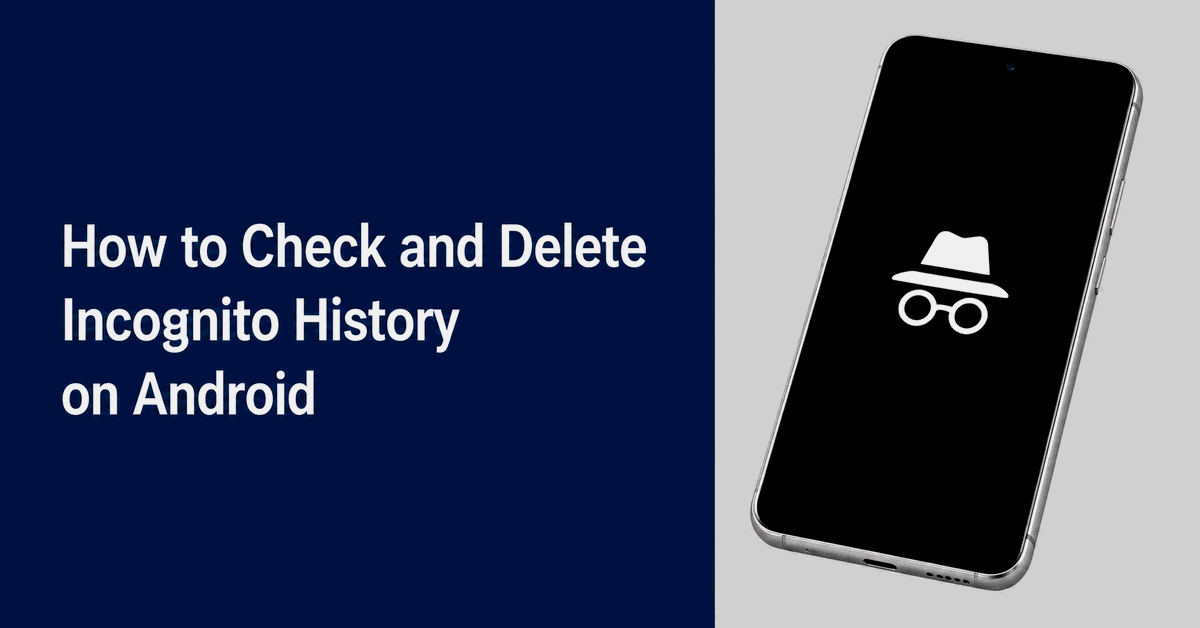
You cannot open a complete list of old Incognito visits in Chrome on Android. Once every Incognito tab is closed, Chrome does not retain that session in its normal browsing history. A saved download, an open tab, or a record collected elsewhere may still exist.
This guide explains what each checking method can show and how to remove data you control. Use these steps on your own phone or with informed permission. For a child, use lawful, age-appropriate supervision. Do not sign into another adult’s accounts or install monitoring software without their agreement.
Method 1: Check records collected by monitoring tools
A monitoring app can collect supported activity after it is set up. That is different from recovering a closed Incognito session that Chrome never saved. Before buying anything, confirm the exact phone, browser, permissions, and information the tool can collect.
1) mSpy
mSpy advertises browser-history monitoring, including Incognito activity on supported setups. Its browser monitoring page describes website records and visit information. These are vendor claims, so do not assume every Android browser works the same way.
Android setup requires physical access to the phone and the required permissions. Records from before installation may be unavailable. The app does not create a complete archive of earlier private sessions, and no monitoring product should be described as impossible to detect.

Steps
- Agree on what will be monitored and why. For an adult, get informed consent before setup.
- Open mSpy and check its compatibility requirements for the Android phone and browser.
- Review the paid plan, renewal price, and refund terms before signing up.
- Follow the official setup on the authorized phone. Do not bypass its lock or hide the monitoring from its owner.
- Sign in to your own mSpy dashboard and open Browser History after the device syncs.
- Review the available records and dates. Missing entries do not prove that no browsing took place.
Pricing and refund terms
Monitoring requires a paid subscription. The online demo shows sample records and does not provide free monitoring of a phone. The refund policy gives qualifying first-subscription purchases a 14-day request window, subject to exclusions and a 9% processing deduction. Lack of device access or missing pre-installation data does not qualify for a refund under those terms.
Free Trial/ Refund: Online demo. 14-day conditional refund policy.
Bottom Line: mSpy may suit a defined parental-supervision need after a compatible setup. Confirm private-browser support before paying, and do not buy it expecting to recover every closed session.
Online demo. 14-day conditional refund policy.
2) Spokeo
Spokeo is a people-search service. It may connect a name, phone number, email, or address with public records and possible profiles. It does not read a phone’s Incognito tabs, private searches, or Chrome history.
A profile match cannot tell you whether someone visited a site in Incognito mode. Records may also belong to a different person or be out of date. Use this service only for a separate public-record search, not as evidence of private browsing.

Steps for a public-record search
- Open Spokeo and choose a name, phone, email, or address search.
- Search your own details, or information you are allowed to use for a legitimate purpose.
- Review possible matches and any report fee or recurring subscription terms before paying.
- Check a match against other reliable information. Do not label public profiles as Incognito history or use consumer reports for employment, housing, or credit decisions.
Bottom Line: Spokeo can help with public-record research. It cannot answer which private pages a phone user opened, so there is no reason to buy a report for Incognito-history recovery.
Paid reports. Check subscription terms.
Method 2: Check a desktop Chrome extension
Off The Record History is a Chrome extension named for recording private browsing. Chrome for Android does not run desktop Chrome extensions. A desktop extension also cannot retrieve closed private tabs from an Android phone, even when both devices use the same Google Account.
If you already use a history-recording extension on a computer, its records depend on what it was allowed to collect at the time. Do not install an old extension from an unofficial download site just to follow a recovery guide.
Steps to review an existing desktop setup
- On a computer you own, open Chrome and choose More > Extensions > Manage extensions.
- If a history-recording extension is installed, open its Details page and review its permissions.
- Check whether Allow in Incognito was enabled during the session. Enabling it now cannot recover an earlier session.
- Open the extension from the Extensions menu and review any records it actually saved. These concern that computer, not your Android phone.
- Use the extension’s own controls to delete records you no longer need. Remove its Incognito permission if you do not want future private sessions recorded.
An extension can change the privacy of an Incognito session. Review its developer, permissions, and retention policy before trusting it with browsing data. Do not assume a seven-day retention period or complete capture. Google’s extension guide explains the desktop controls.
Spynger is a separate monitoring service
Spynger is a paid monitoring service, not a Chrome extension. It needs a supported, authorized device setup. Confirm whether the exact Android browser and private mode are supported before purchase. Do not assume it can retrieve sessions from before setup or operate without the phone owner’s knowledge.
Paid subscription. Check compatibility and billing terms.
Method 3: Review your router’s system logs
Some routers can keep connection, security, DNS, or parental-control records. Others do not record website activity at all. A System Log may show only device connections and errors, so finding that menu does not mean a browsing history is available.
Use this method only on a network you administer with the required notice and permission. Sharing the same Wi-Fi does not give every user access to other people’s browsing. Existing network records may show domains, but ordinary logs do not reveal the contents of HTTPS pages or prove a visit used Incognito mode.
Steps
- Check your router model and its official manual for logging or parental-control features.
- While connected to your own network, open the manufacturer’s app or the documented local admin address.
- Sign in with your authorized router administrator account. Do not try another person’s credentials.
- Look for System Log, Security Log, Traffic, DNS, or a supported parental-control report. Menu names vary.
- Read the record type, device label, and timestamp. A background app or shared device can make a domain entry hard to interpret.
- If no relevant records exist, this method cannot reconstruct past visits. Turning logging on now only affects later activity.
For example, TP-Link’s system-log instructions describe network events and errors. They do not promise a complete browsing history. Encrypted DNS, VPN use, log settings, and retention limits can reduce what appears. A new router cannot recover records that were never kept.
Method 4: Check Android internal storage for saved files
The normal Android file manager cannot reveal a hidden Chrome Incognito-history file. Chrome’s private app data is protected by Android, and Incognito sessions are not saved as an ordinary History list. Connecting the phone to a computer does not turn this into a working recovery method.
What you can check instead
- Open Files or your phone’s file manager and check Downloads for files you chose to save.
- Use Files > Downloads as the main place to check saved files. Chrome > More > Downloads may show some entries, but it is not a complete record of private downloads.
- Check Bookmarks for pages you deliberately saved. Bookmarks can also remain after private tabs close.
- If your own Incognito tabs are still open, use the tab switcher to review them before closing the session.
These are saved items or open pages, not a recovered list of past private visits. A file also does not prove which browsing mode was used. Android protects app-private storage. Avoid rooting a phone or giving an unknown recovery app broad access for this purpose.
Can you check private browsing history on an iPhone?
Safari calls its private mode Private Browsing. It does not save those pages in normal History or share those private tabs across Apple devices. Signing in to iCloud does not provide a secret archive of someone’s closed private sessions.
Review Safari website data on your own iPhone
- Open Settings > Apps > Safari. On older iOS versions, Safari may appear directly in Settings.
- Scroll to Advanced, then open Website Data.
- Review the stored website information. This can include normal-browsing cookies and other site data; it is not a dated record of private visits.
A listed domain is not proof of an Incognito or Private Browsing session. Review an open private tab directly on your own unlocked device if it is still available. Apple’s Private Browsing guide explains the difference. Do not use someone else’s Apple Account to investigate them.
How does Incognito mode work?
Incognito opens a separate browsing session. Chrome can use temporary cookies and site data while it is open. When you close every Incognito tab, it removes that session’s local site data and does not keep its visits in normal browser history.
Downloads and bookmarks you save remain. You usually need to sign in again because normal-session cookies are separate. If you sign in to a website in Incognito, that website can still identify your account and keep activity under its own rules.
Incognito does not hide your IP address from the sites you visit, erase existing network records, or protect a phone from installed monitoring software. Read Google’s explanation of Incognito for its local-data limits.
How to turn on Incognito browsing on Android
- Open Google Chrome on your Android phone or tablet.
- Tap More, the three-dot menu, usually near the top right.
- Choose Open in a new Incognito window. Some versions show New Incognito window or New Incognito tab.
- Check for the Incognito symbol and enter the address you want to visit.
Switching to a normal tab does not close your private tabs. Close all Incognito tabs when you finish, especially on a shared phone.
How to delete Incognito data on Android and iPhone
Start by closing the private session. Then remove any downloads, bookmarks, or separately collected records you no longer want. There is no single button that deletes copies held by websites, a network operator, and a monitoring service.
1) Close all Incognito tabs on Android
- Open Chrome and tap the tab switcher.
- Select the Incognito tab group.
- Open More and choose Close all Incognito tabs. Menu wording can vary.
- Check that no Incognito tabs remain open. Closing only one tab may leave the session active.
2) Remove other local data you saved
- Review Downloads and delete only the files you no longer need. Check the file manager if a file remains on the phone.
- Open Bookmarks and remove any saved pages you no longer want.
- For regular Chrome data, open More > Delete browsing data. Choose the time range and data types before confirming.
- Read the confirmation carefully. Deleting cookies can sign you out, and deleting synced history can affect other signed-in devices.
Deleting a Chrome download-list entry does not always remove the downloaded file. Clear browsing data also does not remove records stored in a monitoring dashboard or another company’s account. Manage those separately. See Chrome’s deletion controls.
3) Clear Chrome’s DNS cache only when needed
DNS helps translate domain names into network addresses. Its cache is a temporary lookup store, not a complete Incognito history. Clearing it can help troubleshoot a stale address, but it cannot erase server logs, bookmarks, downloaded files, or records captured elsewhere.
- In Chrome’s address bar, enter chrome://net-internals/#dns.
- If your version shows a DNS page with Clear host cache, use that control to clear Chrome’s host cache.
- If the page or control is unavailable, skip it. Do not install an unknown app to replace this internal diagnostic feature.
This internal Chrome page can change between versions. It is not an Incognito-history viewer, and clearing Chrome’s host cache does not promise that every DNS cache on the device or network is empty.
4) Clear Safari data on iPhone
- In Safari, open the private tab group and close the private tabs you no longer need.
- To clear normal Safari history and site data, open Settings > Apps > Safari > Clear History and Website Data.
- To remove website data while keeping normal history, use Safari settings > Advanced > Website Data > Remove All Website Data.
- Review and confirm the chosen deletion. Cookies may be removed and websites may sign you out. Delete saved downloads and bookmarks separately.
Follow Apple’s Safari data-deletion instructions for the current menu options.
5) Understand the Airplane Mode method
Turning Airplane Mode on and off changes network connections. It is not a supported way to erase Safari private browsing records, and waiting ten seconds does not turn it into one. Wi-Fi and Bluetooth may also remain available depending on the device settings.
If you use Airplane Mode to troubleshoot a connection, open Control Center, tap the airplane icon, and turn it off when finished. Apple describes Airplane Mode as a connection setting. Use the browser and file-deletion steps above to remove data.
Common myths about Incognito browsing
| Myth | What happens |
|---|---|
| Incognito makes me anonymous. | Websites can still see your connection and recognize accounts you sign in to. Your provider or network operator may see some network activity. |
| Anyone on the same Wi-Fi can read my private history. | Ordinary Wi-Fi users do not automatically get your history. Access depends on network controls, encryption, and any monitoring already in place. |
| An IP address gives my exact phone location. | An IP address may suggest a broad area or provider. It does not reveal the phone’s precise GPS location. |
| A VPN deletes my history. | A VPN changes how traffic travels and shifts trust to the VPN provider. It does not erase local files, website records, or monitoring data. |
| Clearing DNS deletes every trace. | DNS cache clearing affects a lookup cache. Other data needs its own deletion process. |
How to browse with more privacy
- Use a trustworthy VPN when it fits your needs. It can protect traffic between your device and the VPN provider and hide your home IP from destination sites. It cannot guarantee anonymity or remove monitoring already on the phone.
- Choose a privacy-focused browser. Compare its tracking protection, updates, and permissions. A browser claiming privacy does not necessarily include a VPN.
- Review location permissions. Limit website and app access, and check photos for location metadata before sharing. Turning off location access does not erase geotags from older photos or hide your network address.
- Keep malware protection on. Update Android and the browser, use built-in app checks, and avoid suspicious downloads. Security software can reduce some risks but cannot block every scam.
- Consider Tor Browser for Android. It routes supported browser traffic through the Tor network. It can reduce tracking by IP address, but signing in or sharing personal details can still identify you.
- Review ad blockers and privacy extensions. Use reputable options in browsers that support them. Chrome on Android does not run desktop extensions, and an ad blocker cannot stop every phishing attempt.
Privacy and security rules before checking someone else’s history
- Get informed permission from an adult before accessing their phone, account, or private browsing records. A relationship or shared bill is not blanket permission.
- For children, choose lawful controls that match their age and the concern. Explain what is collected and avoid recording unrelated private information.
- Protect any monitoring dashboard with strong account security. Limit who can read the records and remove data when the purpose is complete.
- Do not bypass passwords, use unknown recovery apps, or weaken device protections. Ask a qualified local professional when your authority is unclear.
For planned child supervision, compare parental-control apps by filtering, screen-time rules, platform support, and data collection. A clear family agreement is often more useful than trying to reconstruct a missing browser history.
Verdict
To check and delete Incognito history on Android, first separate open tabs and saved files from records collected by other systems. Close every Incognito tab to end the session. Review downloads and bookmarks, then manage any authorized monitoring or account records separately. Router logs, desktop extensions, and DNS caches each have limits.