Key Takeaways: Start with Find My to locate your own iPhone or see a location another person has shared. Life360 supports family location circles, while AirDroid offers supported parental location features. Messages, Google Maps, and WhatsApp are other sharing options. People should keep separate Apple Accounts and share location by invitation rather than exchanging passwords.
You can use one iPhone to locate another, but the right method depends on whose phone it is. For your own missing device, use Find My or Find Devices on iCloud.com. For a friend or family member, ask them to share their location. That permission is separate from knowing their number or being in their contacts.
Start with the free features already available on the phones. A paid app may add family alerts or history, but it cannot promise a fresh location when the device cannot send one. Always read the time shown next to a map result before setting off to find a person or recover a phone.
The methods below cover Find My, monitoring and family apps, iCloud, Messages, Google Maps, WhatsApp, and Apple Watch. They also explain what to do when a share is missing or a device is offline.
Choose the right route first
| Your situation | Start here | What you need |
|---|---|---|
| Your own second iPhone is missing | Find My, then Devices | Find My enabled before the loss |
| You are borrowing a friend’s iPhone | Find Devices at iCloud.com/find | Sign in to your own Apple Account in the browser |
| A friend wants you to follow a trip | Find My People or Messages | The friend shares their location |
| Your household mixes Android and iPhone | Google Maps, WhatsApp, or Life360 | Each person sets up the agreed sharing method |
| Your paired iPhone is nearby | Apple Watch ping or Find Devices | A supported watch and device connection |
Do not sign another person’s Apple Account into the main Settings app just to find a phone. That can mix account services and personal data. Use the owner’s own session in a browser when helping them locate a missing device, then sign out afterward.
Method 1: Use Find My
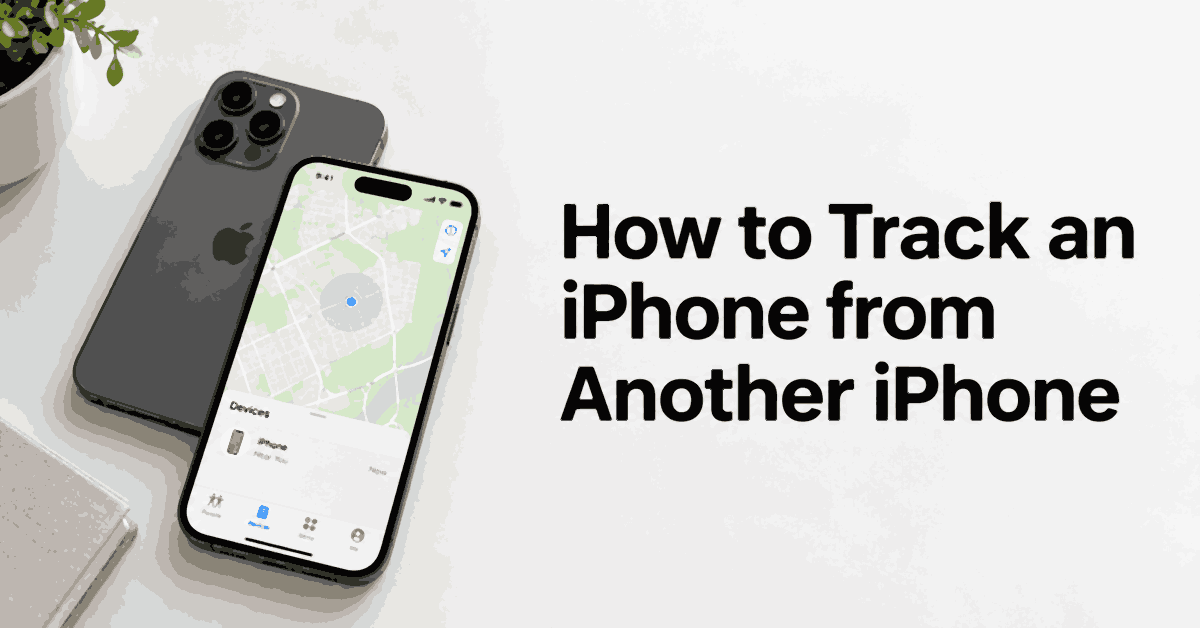
Find My has different sections for people and devices. People shows locations shared with you. Devices shows devices associated with your account and eligible family devices. Knowing this difference avoids a common mistake: searching for a friend’s phone in your personal device list.
Locate your own iPhone
- Open Find My on your other iPhone.
- Select Devices and choose the missing iPhone by its name.
- Read its location and the last-update information.
- Use Play Sound if it may be nearby. Use directions only when the location is safe to visit.
- If it is lost, review the lost-device options and contact information you can display for a finder.
Find My needs to have been set up before the phone went missing. Installing a different tracking app afterward will not retroactively enroll an inaccessible phone. If you believe the phone was stolen, do not confront a suspected thief at a map pin. Share relevant information with local authorities.
See a location shared by a friend
- Ask your friend to open Find My > People on their own iPhone.
- They tap the add button and choose Share My Location.
- They select your contact, send the share, and choose the duration offered.
- On your iPhone, open People and select their name to view the shared location.
- If you want to share back, make that choice separately. A request does not require either person to agree.
Apple’s location-sharing guide explains how to select the device that shares your location. This is useful if an account has several devices. A pin can represent the selected sharing device, so do not assume it always represents the phone currently in someone’s hand.
Stop or review a share
The person sharing can open People, select the recipient, and stop sharing. They can also review Me and the device listed as sharing their location. Family membership is not a reason to hide these controls or to assume that every relative has agreed to continuous tracking.
Method 2: Consider family and monitoring apps
Additional apps can help households that want shared circles, place alerts, or history. Compare their iPhone features rather than relying on an Android screenshot. Apple restricts some types of device access, and a vendor may have separate setup routes with different capabilities.
1) mSpy
mSpy is a monitoring service with location-related features for supported setups. It can collect more information than a normal family map, so it needs a clear supervision purpose. It is not a number-only iPhone tracker and should not be used to obtain secret access to a partner’s account.
For iPhone use, ask the provider which connection method supports the location feature you need. Do not assume that knowing an iCloud password alone creates continuous GPS access, or that every geofence and history feature works through every setup method.
- Check compatibility for the exact iPhone and operating-system version.
- Identify the location function you need and ask whether it is available through the supported setup.
- Review the demo, account-security options, and refund conditions before payment.
- If the arrangement is appropriate, have the authorized device owner complete the documented setup and permissions.
- Review location reports in your own account, checking their time and any gaps in updates.
Limit collection to what is needed. A school-arrival check usually does not require access to private messages, email, or photos. Review the arrangement as the child grows, and remove access when it no longer serves the agreed purpose.
Free Trial/ Refund: 14-day money-back guarantee. Conditions apply; this is not a free installation trial or an automatic refund promise.
Bottom Line: mSpy is an option for a supported and authorized monitoring need. For ordinary iPhone-to-iPhone sharing, try Find My first.
14-day money-back guarantee.
2) AirDroid iPhone Location Tracker
AirDroid offers parental location features through its parent and child applications. Its supported functions include location services, route history, and geofencing, but device requirements and platform restrictions matter. Review the iOS instructions rather than assuming every Android remote-control feature works on iPhone.
AirDroid’s support overview distinguishes iOS from Android capabilities. For example, several remote camera, audio, and screen functions are Android-specific. This guide does not promise remote iPhone erasure or app removal merely because a service offers location tracking.
- Install the parent application on your phone and create or sign into your own account.
- Review the supported iPhone setup with your child and explain the information the service will collect.
- Follow the official pairing instructions for AirDroid Kids on the child’s supported device. Review any management or location permissions before accepting them.
- Open the location section in the parent application and confirm the correct child device is selected.
- Test the agreed location feature together and check any place alerts you decide to use.
If the location is stale, check the child’s internet connection, location permissions, and supported setup. Repeatedly refreshing your parent phone will not repair a connection problem on the other device. Keep the account private and avoid sharing its login with people outside the supervision arrangement.
3) Life360
Life360 organizes location sharing into Circles. It can suit families whose members use different phone brands and want a shared map. Features such as place alerts, history, and safety services depend on the plan and region, so compare the specific benefits your household needs.
Use separate member accounts rather than one shared password. Each person should understand the Circle they are joining and what others can see. An invitation is an opportunity to choose whether to participate, not permission to enroll an adult without asking.
- Install Life360 and sign into your own account.
- Create a Circle or join the agreed family Circle.
- Invite the other person using the app’s invitation process.
- They accept on their own device and review the required location permissions.
- Check the shared map together, then configure only the alerts you both want.
- Review the Circle’s membership and sharing settings when the arrangement changes.
A Circle member can have delayed or unavailable location data because of permissions, battery state, network conditions, or a paused share. A missing update is not proof that the person deliberately hid something. Ask them to check the setup before drawing conclusions.
Other tools mentioned in iPhone-tracking discussions
Spynger is another monitoring service. Treat its iPhone claims as setup-dependent and use it only for appropriate, disclosed supervision. It should not replace Find My for locating your own missing phone or be presented as a way around another adult’s account security.
GEOfinder uses an SMS location-request link. The recipient must cooperate and allow location access. It can be considered for an agreed one-time request, but it is not a permanent iPhone tracking connection created from a phone number. Explain the request before sending it.
Method 3: Use Find Devices on iCloud.com
The web option is helpful when you do not have your own second Apple device available. You can open a browser on a borrowed iPhone and sign into your own account at iCloud.com/find. You do not need to change the borrowed phone’s main Apple Account.
- Open Safari on the available iPhone and go to iCloud.com/find.
- Sign into your own Apple Account. If you are helping someone else, let them enter their credentials themselves.
- Select the missing iPhone from the device list.
- Review the map, device status, and time shown for the result.
- Use the available sound or lost-device controls that match your situation.
- Sign out when you finish, especially on a borrowed or shared phone.
Apple’s Find Devices instructions explain that Find My must already be configured. The web view and the Find My app can differ in how they display offline or last-known locations. Follow the status shown rather than assuming every screen offers continuous live updates.
Do not remove a stolen phone from your Apple Account just because an unexpected message tells you to. A scammer may want to remove its ownership protections. Open Apple’s service directly instead of following a “your phone was found” link sent by an unknown contact.
Method 4: Request a location in Messages
Messages is convenient when you are already discussing where to meet. You can request a location or share your own without moving the conversation to a separate service. Both people should keep their own accounts and make the sharing decision themselves.
- Open the conversation with the person in Messages.
- Tap the plus button and choose Location, if offered on your version of iOS.
- Choose Request to ask them to share, or Share to send your own location.
- The other person reviews the request and selects the sharing option and duration they want.
- Open the location in the conversation to view the available map information.
A pin and an ongoing share are different. A pin can identify a cafe or entrance without showing the sender’s movements afterward. Ask for a live share only when you need updates and the person is comfortable providing them.
If the Location option is not visible, check the conversation type and current app interface. You can use Find My sharing instead. Do not try to force access by signing into someone else’s account or changing their settings without permission.
Method 5: Share through Google Maps
Google Maps works across iPhone and Android, which makes it useful for mixed-device groups. The person sharing controls the audience and duration. A phone number may help select the contact, but it does not provide a location without a share.
- The person opens Google Maps and checks that they are signed into their own Google account.
- They tap their profile picture, then Location Sharing > New share.
- They choose a sharing duration and select the intended recipient.
- They send the share through the option offered, checking the audience before confirming.
- You open the shared location on your iPhone and check when it was last updated.
They can stop sharing from the same Location Sharing section. A limited share is useful for an afternoon outing; an ongoing share should be a separate, clear agreement. Review location permissions if updates stop when the app is in the background.
Sharing a place from the standard map-share button can send a fixed pin rather than live movement. Read the option’s label. If your goal is to follow the journey, use Location Sharing or the trip-progress feature instead of assuming every Maps link is live.
Method 6: Use WhatsApp location sharing
WhatsApp has two location choices that are easy to mix up. Send your current location sends a fixed point. Share live location can update during the chosen period. A fixed pin may be enough for meeting at a building, while a live share is more useful during a journey.
- The sender opens your WhatsApp chat on their iPhone.
- They tap the plus button and choose Location.
- They select Share live location for moving updates or Send your current location for a fixed point.
- For a live share, they choose the offered duration and send it.
- You open the location message and review the map and update information.
- The sender can use Stop sharing before the selected period ends.
Location accuracy can vary indoors or around tall buildings. If you are meeting someone in a large venue, ask for an entrance, floor, or landmark as well. A map pin alone may not identify the correct side of a building.
Bonus method: Find your iPhone with Apple Watch
Apple Watch can help when your own paired phone is nearby or when a device appears in Find Devices. Use the watch’s ping control for a nearby iPhone, or open Find Devices to review available device locations. The app name on the watch is different from the broader Find My app on iPhone.
- Open Find Devices on the watch.
- Select the iPhone you want to locate.
- Read its location and last-connected information.
- Choose Play Sound or directions when available and appropriate.
- If no location appears, review Notify When Found if offered.
Apple’s watch guide describes these options and supported offline cases. A watch does not provide a complete historical route for every linked phone. Its result depends on the device and the information available to Find Devices.
Built-in features or a separate app?
| Consideration | Apple’s built-in options | Separate apps |
|---|---|---|
| Normal iPhone sharing | Find My and Messages offer direct sharing | An extra account or app may be needed |
| Mixed phone brands | Some Apple functions are device-specific | Google Maps and family apps can bridge platforms |
| Missing-device support | Find My has dedicated recovery controls | Usually depends on prior setup and app support |
| History and alerts | Available functions vary by feature | Plans may add route history or place alerts |
| Cost | No separate Find My tracking subscription | Free features and paid plans vary |
| Privacy | Review the recipient and sharing device | Also review the provider’s storage and access rules |
Improve an unclear or stale location
Check the age of the result first. Then confirm that the sharing period is still active and that the correct device is being used. The sender can check mobile data or Wi-Fi, Location Services, and the app’s background permissions. Update the app if the interface or behavior is inconsistent.
Open sky usually gives a phone a better chance of receiving satellite signals than a basement or dense building. Trees, terrain, and reflections can reduce precision. There is no single meter-level accuracy figure that applies to every iPhone in every setting, so do not treat an estimate as a guarantee.
Low power, no connection, and a switched-off device can affect updates differently. Supported Find My network features may provide some offline locating, but that does not mean unlimited live tracking after the battery is depleted. Read the device status and use the recovery options actually offered.
Verdict
Use Find My for your own missing iPhone and for sharing between willing Apple users. iCloud.com/find is useful on a borrowed phone. Messages, Google Maps, WhatsApp, and Life360 suit different sharing habits, while paid monitoring requires a stronger reason and a supported setup. Check the timestamp and permission before relying on any map.