Key Takeaways: A phone number alone cannot reveal a person’s live GPS location. Free, accurate tracking works when you are locating your own device, managing a supervised child’s compatible device, or receiving voluntary location sharing. Use Apple Find My, Google Find Hub, Google Maps, or Family Link, and avoid sites that promise secret, instant tracking from only a number.
Losing a phone can turn into a security problem quickly. A misleading “phone number tracker” can make matters worse by showing an unrelated city, collecting payment details, or encouraging access that violates another person’s privacy.
This guide explains the free methods that actually work and the access each one requires. The steps are based on current Apple and Google documentation reviewed on September 2, 2026. Menu names can vary slightly by device model, operating-system version, account type, and region.
Can You Track a Phone Number Location for Free?
No consumer service can produce a live GPS pin from a phone number alone. A number may reveal its country code, original numbering area, or carrier. It does not provide public access to the phone’s current GPS sensor or mobile-network location.
Free live location becomes possible when one of three conditions is met: you sign in to the account connected to your own missing device, a supervised child’s compatible device is linked to your family account, or the other person deliberately shares their location with you. Families that need ongoing alerts can also compare dedicated location tracking apps, but those services still require setup and appropriate permission.
| Method | Best For | What You Need | Cost |
|---|---|---|---|
| Google Find Hub | Your lost Android phone | The Google Account already connected to the device | Free |
| Apple Find My | Your lost iPhone | Find My enabled before the phone went missing | Free |
| Google Maps sharing | A consenting friend or family member | The person must share or approve a request | Free |
| Google Family Link | A supervised child’s compatible Android device | Family supervision and location sharing configured | Free |
| Reverse phone lookup | Researching an unfamiliar caller | A phone number and careful identity verification | Basic data may be free |
Before You Try to Locate a Phone
- Confirm your authority: Locate your own device, a child’s device you are legally permitted to supervise, or a device whose adult owner has consented.
- Use the correct account: Find My and Find Hub locate devices associated with an Apple Account or Google Account, not arbitrary phone numbers.
- Check connectivity: Current positions usually require power, location services, and an internet connection. Supported offline-finding networks may show a recent or relayed location.
- Protect sign-in access: Keep recovery methods and backup codes somewhere other than the phone you could lose.
- Do not confront a thief: If a stolen device appears at an unfamiliar address, share the information with local law enforcement.
Method 1: Find Your Android Phone with Google Find Hub
Google Find Hub can locate, ring, mark as lost, or erase an Android device tied to your Google Account. Google says the device normally needs Find Hub enabled and must remain visible in Google Play. Its offline network can sometimes return an encrypted recent location, while select supported phones can remain discoverable for several hours after powering off.
Steps to locate the Android device
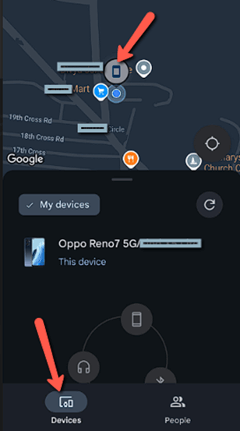
- Open android.com/find in a browser, or open the Find Hub app on another Android device.
- Sign in with the Google Account already connected to the missing phone. If helping a friend, choose guest sign-in and let the owner enter their own credentials.
- Select the missing phone from the device list. The map will show its available current, recent, or network-relayed location.
- Choose Play sound for a nearby phone, Mark as lost to secure it, or Get directions if retrieval is safe.
- Use factory reset only as a last resort. Google notes that erasing the device permanently deletes its data and stops Find Hub location updates.
Bottom Line: Find Hub is the safest free starting point for your own Android phone. Its success depends on account access, prior settings, device support, and the location information still available.
Method 2: Find Your iPhone with Apple Find My
Apple Find My can locate an iPhone, play a sound, mark it as lost, or provide directions. Find My must have been enabled before the device disappeared. If you cannot use another Apple device, open iCloud Find Devices in a browser.
Steps to locate the iPhone
- Open the Find My app on an Apple device signed in to your account, or visit iCloud Find Devices.
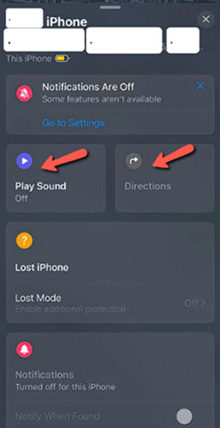
- Select Devices, then choose the missing iPhone. Find My will display the available location or last known information.
- Use Play Sound if the phone is nearby. Choose Directions when the route is safe.
- Turn on Lost Mode if the device is missing outside your home. Add a reachable contact number and message without exposing sensitive details.
- If theft is likely, contact your carrier and local law enforcement. Do not travel alone to an unfamiliar location shown on the map.
Bottom Line: Apple Find My is the correct free tool for a missing iPhone. A phone number is not part of the lookup; the device’s Apple Account relationship and prior Find My settings are.
Method 3: Ask Someone to Share Their Location in Google Maps
Google Maps is a practical free option when the phone owner agrees to share. Google Location Sharing is off by default and works per account and device. A recipient may see the person’s name, profile image, real-time location, battery status, and sometimes recent movement or travel mode.
Steps for the person sharing
- Open Google Maps and tap the profile picture or initial.
- Tap Location sharing, then New share or Share location.
- Choose how long to share. Select a trusted Google contact, or create a sharing link for the intended recipient.
- Send the invitation through the chosen app. The recipient opens it to view the shared location in Maps.
- When sharing is no longer needed, return to Location sharing, select the recipient, and tap Stop.
If your family needs arrival, departure, or history features beyond basic sharing, review the differences among family tracking apps before installing anything. Compare Android and iPhone support because features can differ significantly.
Bottom Line: Google Maps works well for temporary, transparent sharing between trusted people. The person being located controls whether sharing starts, how long it lasts, and when it stops.
Method 4: Find a Child’s Android Phone with Family Link
Google Family Link can show the location of a supervised child’s compatible Android device or Fitbit when device location sharing is turned on. The tool is designed for a parent-managed family account, not for tracking an adult secretly.
- Open the Family Link app on the parent device.
- Tap Location, then choose Set up location. If that option is absent, select the child and turn on location sharing.
- Select the child accounts you want to configure, tap Next, then Turn on.
- For arrival and departure alerts, add a Family place, confirm Location Accuracy is enabled, and turn the relevant notification on.
- If the location is missing, check that the child’s device is powered on, recently used, and connected to the internet.
For broader controls such as app limits, web filtering, and screen-time schedules, compare parental control apps for Android and iPhone. Explain age-appropriate rules to the child and collect only the information needed for a defined safety purpose.
Bottom Line: Family Link is a free option for transparent supervision within a Google family group. It requires a compatible child account, supported device, location settings, and connectivity.
Method 5: Share an iPhone Location in Find My or Messages
An iPhone user can share a one-time position, an ongoing Live Location, an estimated arrival time, or a Check In with a trusted contact. Apple lets the sender choose what to share and for how long.
Share an ongoing location with Find My
- Open Find My, tap Me, and turn on Share My Location.
- Open People, tap the add button, then choose Share My Location.
- Select a trusted contact and choose one hour, until the end of the day, or indefinite sharing.
- To stop, open the person in Find My and tap Stop Sharing My Location.
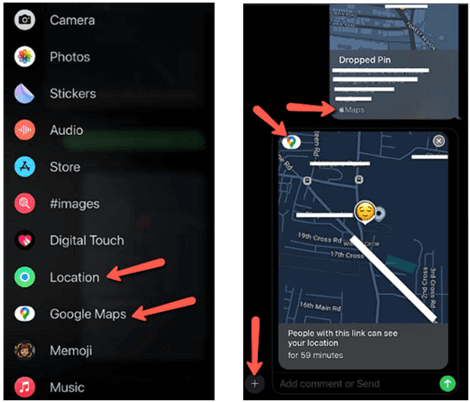
For a single update, send a location pin in Messages. For a trip, use Maps to share an ETA. Check In is useful when you want a trusted person notified only if you do not arrive or finish an activity as expected.
Bottom Line: Apple’s sharing options let the iPhone owner choose the audience, detail, and duration. This is safer and more accurate than trying to infer location from a phone number.
What Can a Reverse Phone Lookup Actually Tell You?
A reverse phone lookup may return the number’s carrier, line type, original numbering area, a possible subscriber name, or addresses found in public records. That information can help identify an unfamiliar caller, but it is not the device’s live location.
Mobile numbers move between carriers and locations, and public records can be old, incomplete, or matched to the wrong person. Treat every result as a lead that requires independent confirmation. Never use an unverified report to confront someone, make an eligibility decision, or claim that a person is currently at a listed address.
Avoid any website that promises a precise moving map from only a number, demands payment before explaining its data source, or asks you to install unknown software. Legitimate live tracking requires access to the device account, supervision settings, or the phone owner’s voluntary sharing.
How to Find a Phone That Is Offline
An offline phone may show a stored, last-known, or network-relayed location, but it cannot continuously send a fresh GPS position without power or connectivity. Available behavior depends on the phone model and settings configured before it went missing.
- Check Find My or Find Hub: Look for a recent location and enable lost-device notifications if available.
- Retrace safe locations: Contact places you recently visited rather than trying to access private security footage or account records yourself.
- Call the number: A helpful finder may answer once the phone reconnects or is charged.
- Notify the carrier: Ask it to suspend service or protect the account. A carrier will not provide another subscriber’s location to a consumer.
- Prepare identifiers: Keep the IMEI and serial number for the carrier or police report. These identifiers do not create a public tracking method.
What to Do If a Phone Is Stolen or Someone Is Missing
If a phone was stolen, mark it as lost, change exposed account passwords from a trusted device, contact the carrier, and file a police report when appropriate. Do not travel to a map pin or attempt to recover the device from a stranger.
If a person may be in immediate danger, contact the emergency service for the country where the incident is occurring. Provide the person’s name, phone number, last known location, vehicle information, medical concerns, and other relevant facts. Emergency responders and carriers have lawful processes that consumer lookup sites do not.
For routine family coordination rather than an emergency, compare transparent GPS phone tracker apps and agree in advance on when location sharing is appropriate.
How to Stop Unwanted Location Tracking
- Review the people and groups who can see your location in Find My, Google Maps, Messages, and family-account settings.
- Audit location permissions and remove access from apps that do not need it.
- Check for unknown tracker alerts, unfamiliar account sessions, unexpected device-management profiles, and apps you did not install.
- Change important passwords, enable multifactor authentication, and update account-recovery options from a trusted device.
- If personal safety is at risk, use the phone’s safety controls to stop sharing and contact a trusted support service or local authority.
Verdict
The safest way to track a phone number location free is to stop treating the number as the locator. Use Google Find Hub or Apple Find My for your own device, Family Link for a supervised child’s compatible device, or voluntary Google Maps and Apple location sharing for another person. Reverse lookups can research a caller, but they cannot provide a trustworthy live GPS pin.